| Support Category: Performance | Performance Management Inquiry |
Kindly provide the SR below to assist users with creating a New Check-In.
To create a Check-In, kindly follow the steps below:
1. Once you're logged into your Roadmap to Success portal, scroll down and click 'Learn More' under Check-Ins.
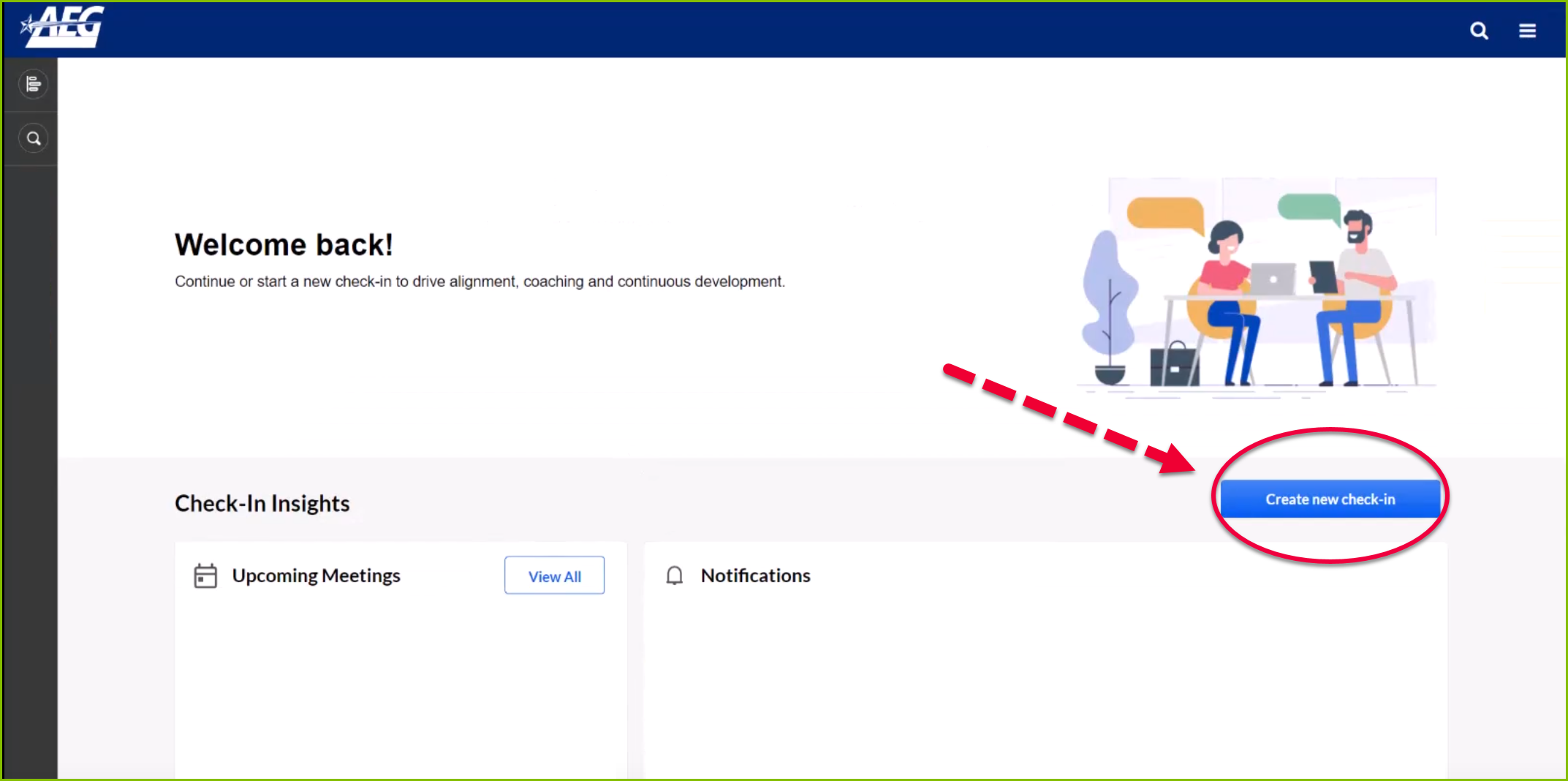
2. Click the 'Create New Check-In' button or, if this is your first time, click the 'Get Started' button.
3. Select who the check-in will be with, then click 'Continue'.
4. Choose a check-in template (1:1 or Goal & Development Check-In) and click 'Continue'.
5. Set the meeting date, time, location, and recurrence. For frequency, choose the 'On the' option to ensure the meeting does not land on a weekend.
6. Ensure the Email Invite option is checked to send a calendar invitation.
7. Finally, review your check-in details and click 'Confirm'.
