| Support Category: Performance | Performance Management Inquiry |
| Specialist Notes: |
Check-Ins can be edited, rescheduled, or canceled by selecting the meeting series from the Check-Ins homepage. Changes to a meeting, including cancellations or reschedules, will trigger email notifications if Email Invite was enabled.
| Standard Response: |
Thank you for your patience while I look into this for you. If you would like to edit, reschedule, or cancel a Check-In meeting, please follow the instructions below:
1. Click 'Learn More' under Check-Ins in the Roadmap to Success portal.
2. On the Check-Ins homepage, select the existing check-in meeting series you want to manage.
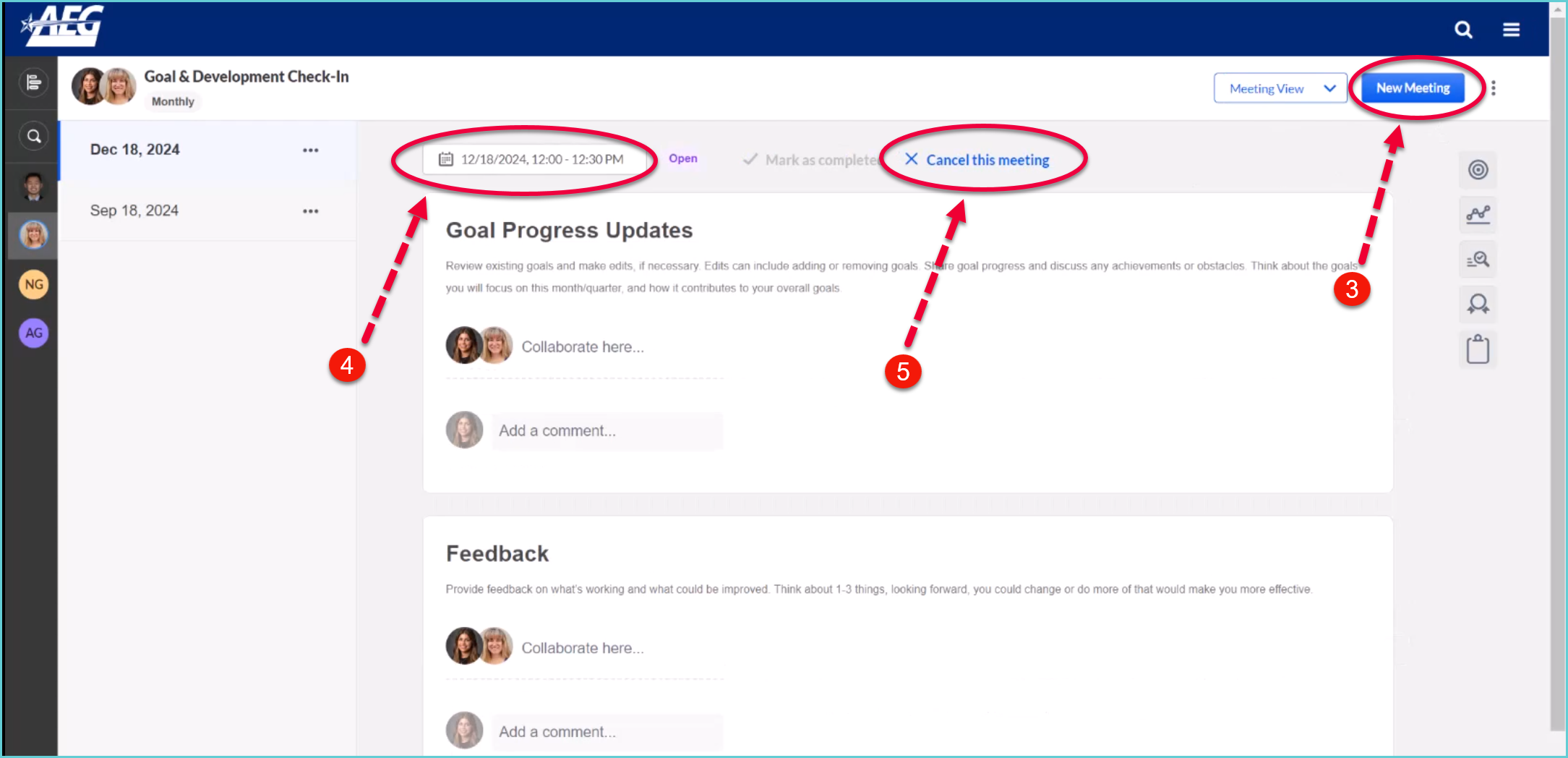
3. Open the specific meeting by clicking 'New Meeting' in the top-right corner (for a new occurrence in the series) or by selecting a scheduled meeting.
4. To edit or reschedule the meeting, select the 'Date and Time' option.
5. To cancel the meeting, click 'Cancel This Meeting'.
6. Click 'Save' to apply your changes.
Note: When a meeting is created, rescheduled, or canceled, the system will send an email notification to participants.
